Sold out
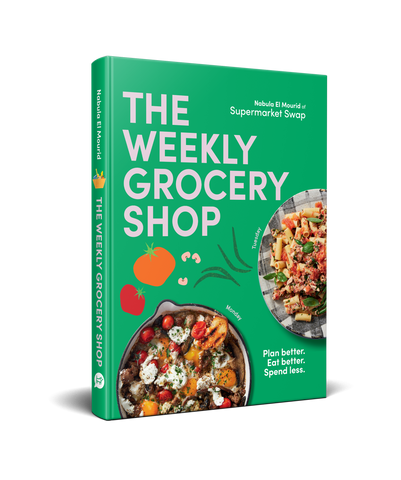
$39.95


When you open the Supermarket Swap App, the first thing you see is the Home screen. Think of it as your personalised dashboard, a place to check in on new products, get inspired to cook, connect with the community, and jump straight to the features you use most.
Here is a breakdown of everything you will find on the Home screen and how to make the most of it.

At the top of the Home screen you will see quick links to My List and Meal Plan. These shortcuts let you jump straight into your shopping list or weekly meal plan without navigating through the rest of the app. Handy when you are mid-shop or planning dinner for the week.
Each week, 7 new additive-free products are added to the app catalogue. These are featured on the Home screen under New Products so you can easily stay across what is fresh in the app. Tap on any product to see its full details, nutritional rating, and ingredients.

Scroll down to find the Recipe of the Week, a freshly highlighted recipe to inspire your weekly cooking. Tap the recipe image to open the full recipe, view ingredients, and add items directly to your shopping list. You can also access your full Meal Plan from this section to plan the week ahead.
The Home screen also features 3 new Community Finds each week. These are products submitted by real Supermarket Swap members from around the country. You will see the product name, an image, and the name and state of the member who found it.
One of the most practical features on the Home screen is Favourites On Sale. This section shows you which of your saved favourite products are currently on special at the supermarket. No more missing a deal on the products you actually buy. Simply save products to your Favourites in the Shop tab and the app will do the rest.

Want to share a find of your own? Any user can submit a product for the community through the Submit a Product button on the Home screen. It is open to everyone, not just subscribers, so if you have spotted a great additive-free product on your supermarket shelves, we would love to hear about it.

At the bottom of the screen you will find the main navigation bar with five tabs:
Each tab has its own dedicated guide to help you get the most out of the app. See the links below.
Have a question? We are here to help. Reach out to our team at support@supermarketswap.com.au
Read More about the Cook Tab Here
Read More about the Ingredients Tab Here